


Video used to be the thing that stopped regular people cold. You needed a camera, a computer that could handle editing, and the patience to learn software that looked like an airplane cockpit. So most of us just… didn’t. The idea sat on the shelf next to “learn Spanish” and “clean out the garage.”
So basically, AI blew that excuse up. Now you can type a sentence and get a video clip. Record a voice memo and get a talking-head video with a person who doesn’t exist. Edit a video by deleting sentences in a document, like it’s a Word file.
Here’s the problem: the AI video tool landscape is a swamp of subscriptions, credits, free trials that aren’t really free, and marketing that promises Hollywood and delivers a blurry dog. I dug through the actual pricing and the real reviews so you don’t have to. Five tools, in plain English, with what they cost and where they fall short.
One note before we start: there are two kinds of AI video tools, and mixing them up is how people waste money. Generators make video from nothing — you type text or upload a photo, and out comes a clip. Editors help you cut and polish video you already shot (or recorded). Know which one you need before you pay for anything.
| Tool | Type | Free tier | Paid from |
|---|---|---|---|
| CapCut | Editor | Yes — full basics, 1080p export | ~$9.99/mo |
| Descript | Editor | 1 hr media/mo, 720p export | $16/mo (annual) |
| Runway | Generator | 125 one-time credits, watermark | $15/mo |
| HeyGen | Generator | 3 videos/mo, watermark | $29/mo |
| Luma Dream Machine | Generator | 8 drafts/mo, watermark | $29.99/mo |
1. CapCut — The Free First Step
If you’ve never made a video before, start here. CapCut is a full video editor that lives on your phone and your computer, and the free version is genuinely usable — not one of those free trials that holds your video hostage until you pay. You can cut clips, add captions that sync to your words, drop in music, and export in 1080p.
What it does for you: everything the phone-shot video in your camera roll wishes it was. Auto-captions alone are worth the download — it listens to your audio and writes the subtitles for you, which is the part of video editing everyone hates.
What it costs: free is real — full basic editor, 1080p export, free templates. The paid tiers got reshuffled in 2025: Standard runs about $9.99 a month (mostly for mobile, removes watermarks), and Pro is around $19.99 a month or $179.99 a year (4K export, the full AI toolkit, cloud storage). Check the live price before you pay — it shifts by region and device.
Who it’s for: beginners, short-form creators, anyone making TikToks, Reels, or Shorts. If your video life is vertical, this is your tool.
The honest limit: two things. First, CapCut is owned by ByteDance — TikTok’s parent company — and the geopolitical situation around it keeps shifting, with US restrictions tightening more than once. Nothing’s happened to everyday users, but it’s worth knowing who owns your editor. Second, the commercial-use terms keep moving around, so if you’re making videos for a business, read the current terms before you monetize anything.
2. Descript — Edit Video Like a Document
This one surprised me. Descript throws out the timeline entirely. You upload your video, it transcribes everything you said, and then you edit the words — delete a sentence in the transcript, and that part of the video disappears. Stumble over a word? Delete it like a typo. It feels less like video editing and more like fixing an email.
What it does for you: it kills the two worst parts of making talking-head videos — cutting out the “ums” and re-recording flubbed lines. There’s also a voice-clone feature that can regenerate a sentence in your own voice when you rewrite it, so you don’t have to re-shoot. For podcasts, tutorials, and course videos, this is the fastest workflow going.
What it costs: free gets you about an hour of media a month with 720p export — enough to see if the workflow clicks. Hobbyist is $16 a month on annual billing ($24 month-to-month), and Creator is $24 a month annual ($35 month-to-month) with 4K export and the full AI toolkit. Heads up: Descript runs on two meters — media hours and AI credits — and the fancy features eat credits. Watch your usage the first month.
Who it’s for: podcasters, YouTubers who talk to the camera, course creators, anyone whose video is mostly words. If your content is you explaining things, Descript is built for you.
The honest limit: the credit system is the gotcha — the plan price is only the start of the bill if you lean on the AI features. And the free tier’s one hour a month runs out fast. Also, Descript is great at words and just okay at everything else; if your video is mostly action and B-roll, a traditional editor fits better.
3. Runway — Type a Sentence, Get a Video Clip
This is the one that feels like the future. You describe a shot — “a drone flying over a foggy coastline at sunrise” — and Runway generates an actual video clip of it. No camera, no crew, no leaving your couch. It also does image-to-video (upload a photo, tell it how the camera should move) and has editing tools for tweaking real footage.
What it does for you: B-roll on demand. Need an establishing shot for your video, a background for your thumbnail, or a quick visual for a presentation? Type it, get it. Creators use it for the shots that would cost real money or a plane ticket to film.
What it costs: free gives you 125 one-time credits with a watermark — enough to play around, not enough to work. Standard is $15 a month ($12 on annual) for 625 monthly credits, no watermark, 4K upscaling. The math that matters: their newest model runs about 12 credits per second of video, so a Standard month buys you roughly 50 seconds of finished clips. Budget your retries — failed generations burn credits too.
Who it’s for: creators who need visuals they can’t film, marketers, anyone making content where a cool 5-second shot makes the difference. Not for beginners who just want to edit phone footage — that’s CapCut’s job.
The honest limit: credits evaporate faster than you expect, and AI video still has tells — weird hands, text that melts, faces that shift between shots. Roxie’s take: it cranks out solid B-roll, but don’t hire it to shoot your wedding. And the free tier is a demo, not a workflow — the watermark and tiny credit pool see to that.
4. HeyGen — A Talking Head Without the Talking Head
You know that thing where you’d make more videos if you didn’t have to be on camera? HeyGen is the answer to that. You type a script, pick an AI avatar (or clone your own face and voice), and it generates a video of “you” delivering it — lip-synced, in 175+ languages. Training videos, product explainers, course lessons, all without setting up a camera.
What it does for you: it removes the two biggest reasons people don’t make videos — hating how they look on camera, and the time it takes to film and re-film. Write the script once, get a polished presenter video back.
What it costs: free gets you 3 short watermarked videos a month at 720p — a real trial, not a trick. Creator is $29 a month ($24 on annual) with unlimited videos, 1080p, no watermark, and voice cloning. One catch the marketing buries: the premium features (the best avatars, translation) run on a separate credit meter even on paid plans, so “unlimited videos” doesn’t mean unlimited everything.
Who it’s for: businesses making training or explainer content, course creators, anyone who needs a presenter but doesn’t want to be one. If the phrase “I hate being on camera” has ever left your mouth, this is your tool.
The honest limit: avatars have improved a lot, but viewers can still usually tell — and trust matters, so don’t use an avatar where a real human face is the point. Also, the credit-meter fine print means your real monthly cost can creep past the sticker price if you use the premium features. Do the math on your actual usage before you commit.
5. Luma Dream Machine — Photos That Start Moving
Luma does one thing beautifully: image-to-video. Upload a still photo, and it animates it with smooth, natural motion — a product shot that slowly rotates, a landscape where the clouds actually drift, a portrait where the subject turns toward the camera. It’s the easiest “wow” in this whole list.
What it does for you: it turns assets you already have into motion. That product photo on your website becomes a video ad. A still from your trip becomes a clip with living clouds and water. For social posts and ads, it’s the fastest way to make something that stops thumbs.
What it costs: the free tier is genuinely generous for playing around — about 8 draft videos a month with a watermark, personal use only. Plus is $29.99 a month for 10,000 credits, no watermark, and commercial rights. Like Runway, credits burn on every generation including the duds, so prototype cheap and only polish the shots that survive.
Who it’s for: social media creators, small businesses with product photos, anyone who wants motion graphics without learning motion graphics. If you have good stills and want them to move, start here.
The honest limit: no native audio — your clip comes out silent, so plan on adding music or voiceover separately. And character consistency across multiple shots trails the competition, so it’s better for single striking shots than for a whole story with the same person in every scene.
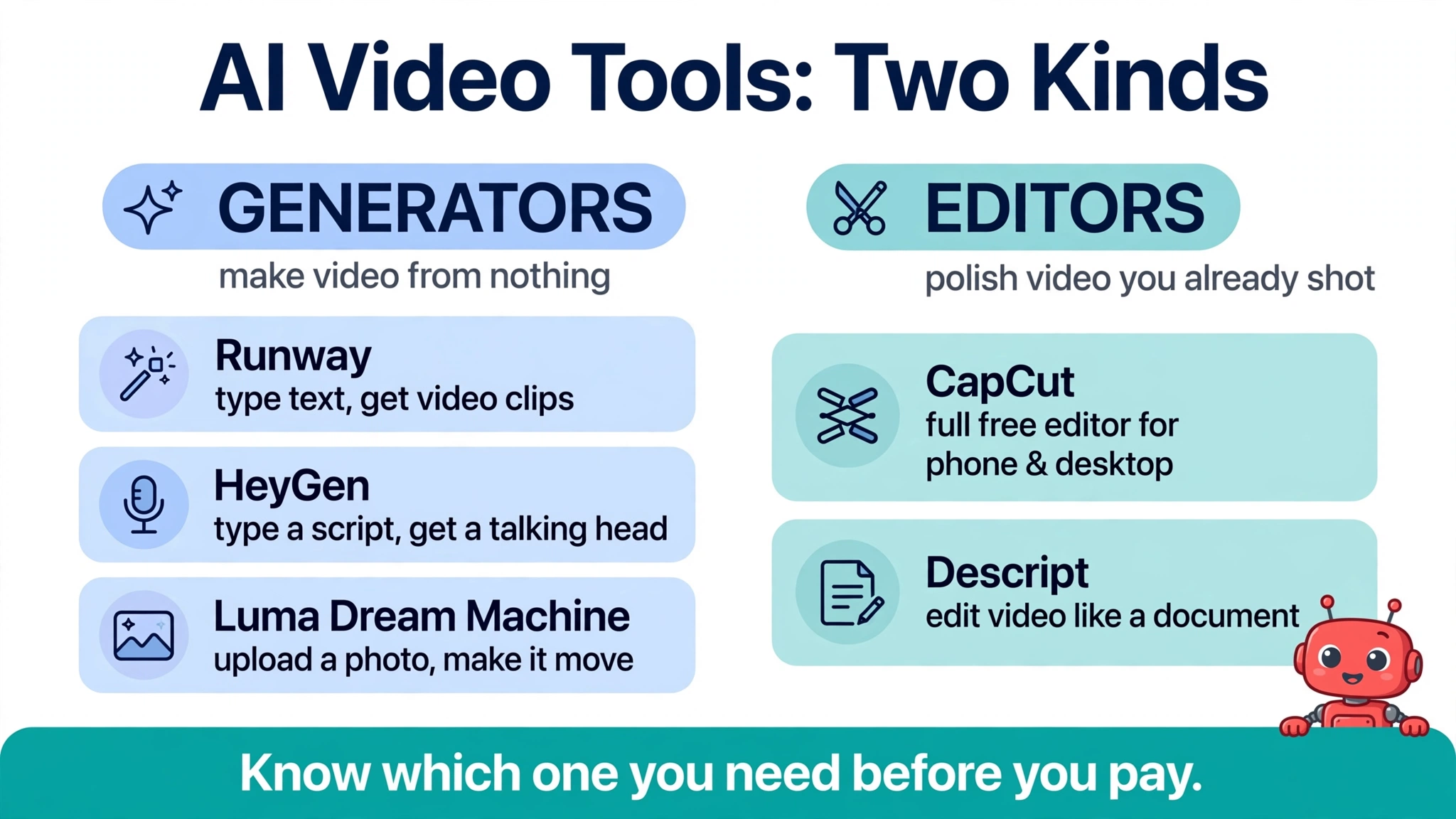
Start This Week: Pick ONE
The new-tool graveyard is real — the folder of apps you downloaded, opened twice, and forgot. Don’t do that here.
Pick based on what you’re actually trying to make. Editing phone footage? Download CapCut free today and caption one video. Talking-head content without the filming pain? Try Descript’s free hour on your next recording. Need visuals you can’t film? Burn through Runway’s free credits on one project. Camera-shy but script-ready? HeyGen’s free three videos will tell you if avatars work for your audience. Got good photos? Animate one in Luma tonight.
One tool, one real project, this week. That’s the whole method.
(And the Roxie-approved fine print: prices shift — I grounded these in October 2026 reporting, but check the live pricing page before you pay. Free tiers are demos, not workflows. And no affiliate links on this one — nothing to sell you, just the map.)
— Rex
Keep learning
Want better results from these tools? It starts with how you ask — read How to Prompt AI Tools So They Actually Give You What You Want — and if you want an AI that handles the boring parts of your week, here’s my full Muse walkthrough.
[…] Once your prompts are solid, here’s where to spend them: my rundown of the AI video tools that actually work for beginners. […]